Exporting and Importing Devices
You can import and export remote device configurations in your Device Definition Service (DDS) using CygNet Explorer. This is especially useful for copying a device configuration from one DDS to another. Additionally, exported device configuration XML files can be stored in separate folders as backup records of current device configurations.
Device properties are exported in XML format. The file produced by export contains the configuration properties of the exported remote device. Note that this file is not the same format as the original device template file (.dtf). Unlike the exported XML file, the device template file defines the actual device structure for the EIE.
To Export Devices
You can export one or more device configurations at a time. If you export multiple device configurations at one time, definitions are written to a single .xml file.
- Devices to export can be selected in one of the following ways:
- Open your DDS in CygNet Explorer, right-click in the DDS pane, and select Import/Export....
- Open your DDS in CygNet Explorer, select the device configuration(s) to be exported, right-click on any of the selected devices, and select Import/Export....
- To multi-select contiguous device configurations, hold Shift and click to select.
- To multi-select non-contiguous device configurations, hold Ctrl and click to select.
- Click the Export option.
- If desired, filter the devices using the Filter drop-down menu.
- If specific device configuration(s) were not already chosen, click the device configuration(s) to be exported.
- To multi-select contiguous device configurations, hold Shift and click to select.
- To multi-select non-contiguous device configurations, hold Ctrl and click to select.
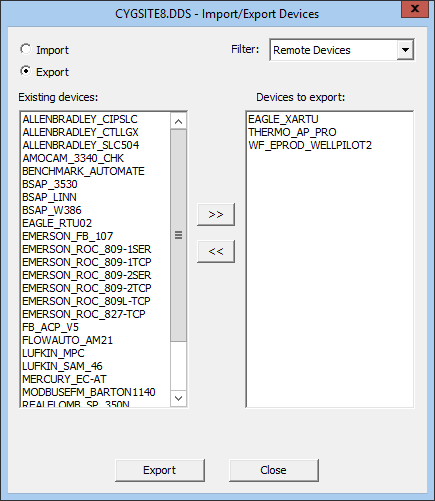
- Click >> to move the selected devices to the Devices to export field if not already populated
- Click Export.
- In the Save As dialog box, specify the file destination and file name, then click Save.
The following is a sample Export view of the Import/Export Devices dialog box.
|
| Sample Import/Export Dialog Box: Export View |
To Import Devices
You can use the Import option to create new device configurations or overwrite existing device configurations. The import source file must be an .xml file created using the Export process.
Note: When using Import to create a new device configuration, facilities linked to the device configuration must already exist in the Facility Service (FAC). Linked facilities are not created during the import process.
- Open your DDS in CygNet Explorer, right-click in the DDS pane, and select Import/Export....
- Click the Import option.
- Click Browse for XML file.
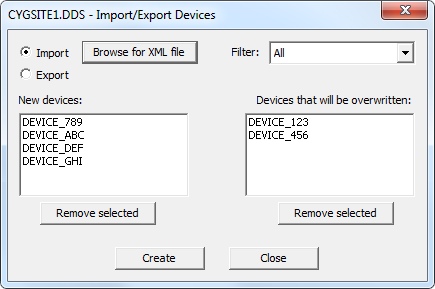
- On the Open dialog box, select the .xml file you want and click Open. Device configurations included in this .xml file are listed in either the New devices field or the Devices that will be overwritten field.
- Continue adding .xml files you want to import. Use Remove selected to remove unwanted .xml files from your import.
- Click Create.
- Click Yes to confirm overwrites.
- Click Close to close.
The following is a sample Import view of the Import/Export Devices dialog box.
|
Sample Import/Export Dialog Box: Import View |